Every draft the platform writes waits on the Review page until a person decides what happens to it. Nothing is published until a reviewer approves it, and a rejected draft can be rewritten by the AI using the reviewer's reason.
Each card shows the AI's draft beside the evidence it was written from, so a reviewer can check every claim without leaving the page:
- AI draft: The draft as it will be published.
- Source evidence: The ticket the change came from, with its acceptance criteria, and the pull request's description.
- Model reasoning: For documentation drafts and QA scenario sets, the AI's own explanation of its decision. It is a claim to check against the evidence, not a source.
- Where this came from: The ticket and the pull requests the draft covers, and why the ticket has one draft or several.

To review a release cut's drafts:
1. Click Review

2. In Release cut, choose the release cut to review. Each choice shows how many of its drafts are pending review

3. Click Release notes, Docs gap or QA scenarios to see that kind of draft

4. Click Approve on each draft that is ready to publish

Note: To change a decision, click Undo on the approved or rejected draft. It returns to pending review.
To reject a draft and have it rewritten:
1. Click Reject
2. Enter what to change in the reason box. The AI uses the reason when it rewrites the draft

3. Click Confirm reject
4. Click Regenerate on the rejected card. The rewritten draft returns to pending review

To split or merge release notes:
The AI writes one release note for each change unless a ticket's pull requests deliver unrelated work. A reviewer can change that.
1. Click Split this release note to move some of its pull requests into a release note of their own, or Merge with another release note to combine two release notes for the same ticket
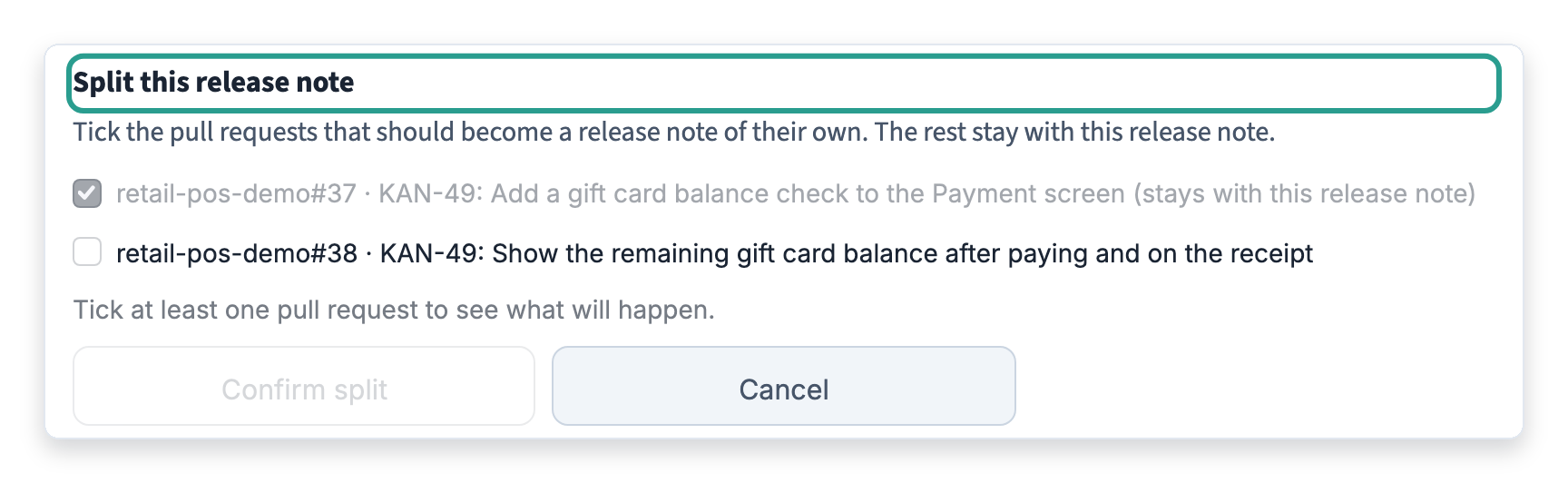
2. Choose what to move or merge, then click Confirm split or Confirm merge. The AI rewrites the release notes involved, and each returns to pending review