Once a release's changes have been brought in, the platform drafts three kinds of content from them. Each ticket and all of the pull requests that belong to it are treated as one change, so a feature built across several pull requests is described once, as a whole, rather than piece by piece.
- Release notes: A short headline and summary of what changed, written twice: once for the internal team, with the details people inside the company need, and once for customers, in plain language that leaves out internal detail. A change customers cannot see, such as a test or a database migration, gets only the internal version.
- Documentation drafts: The AI compares each change with the help articles that already exist and decides whether a separate article is needed, an existing article needs an update, or no change to the documentation is needed. When an article is needed, it writes the text in the help center's house style.
- QA scenario sets: Plain-language manual test scenarios a tester can follow to confirm the change works, each with its starting conditions, its steps and the result to expect. Each scenario names the pull requests it checks.
Only the kinds of draft switched on for the product are written. A product that does not publish QA scenarios, for example, gets no QA drafts.
To generate drafts:
1. Click Generate

2. Scroll to Generate drafts. The count under the heading shows how many changes have no draft yet
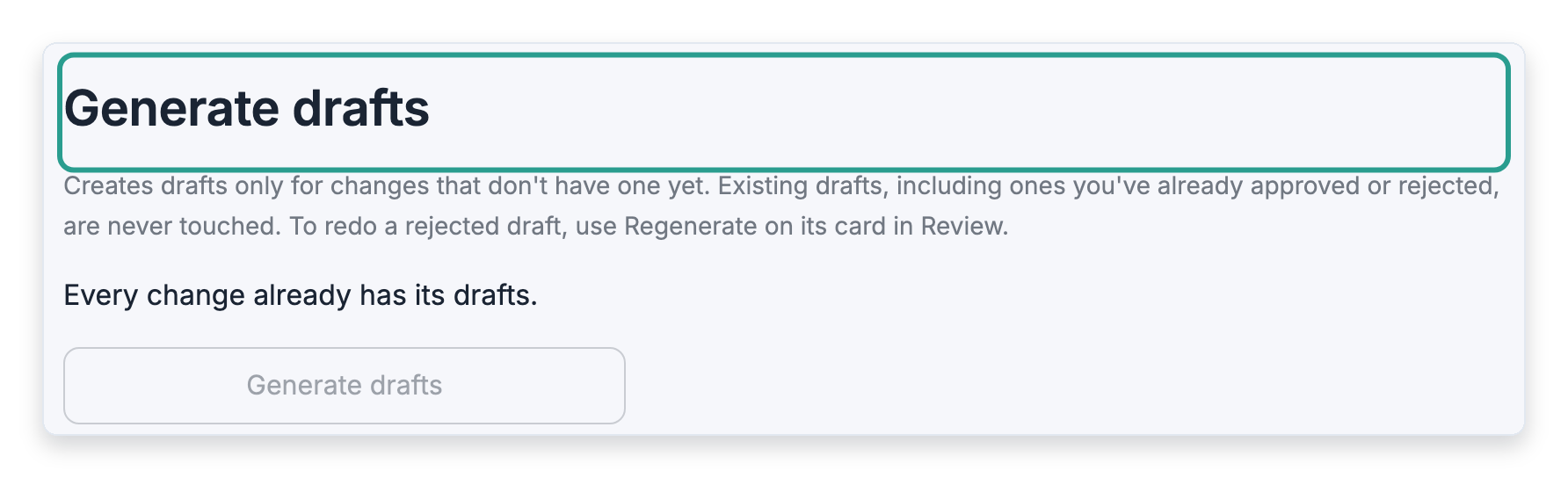
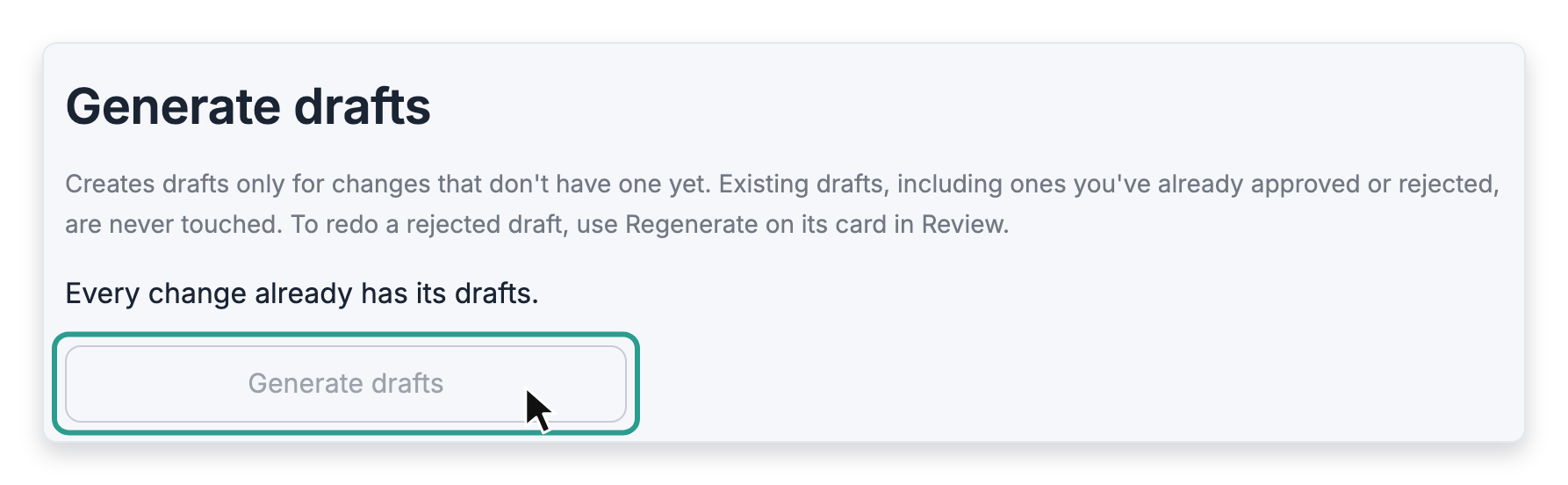
3. Click Generate drafts. A progress bar names each ticket as its drafts are written and counts the changes that are done
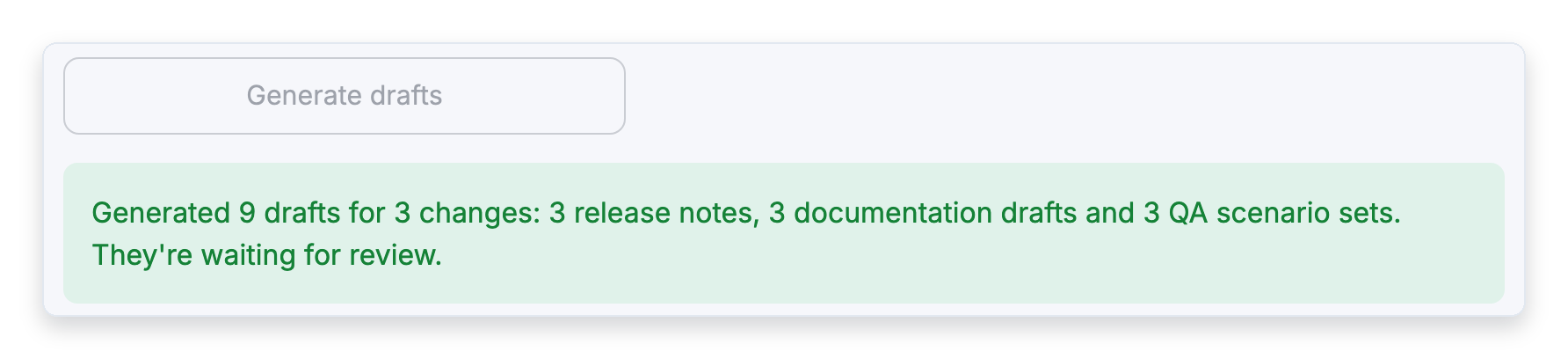
4. Stay on the page until the result appears under the button. It counts the drafts written of each kind and says they are waiting for review
Important: Leaving the page or clicking anything else stops the run. The drafts finished before that point are kept, and the next visit to the page says how many changes are still waiting, so the run can be started again to finish them.
When a ticket gets more than one draft
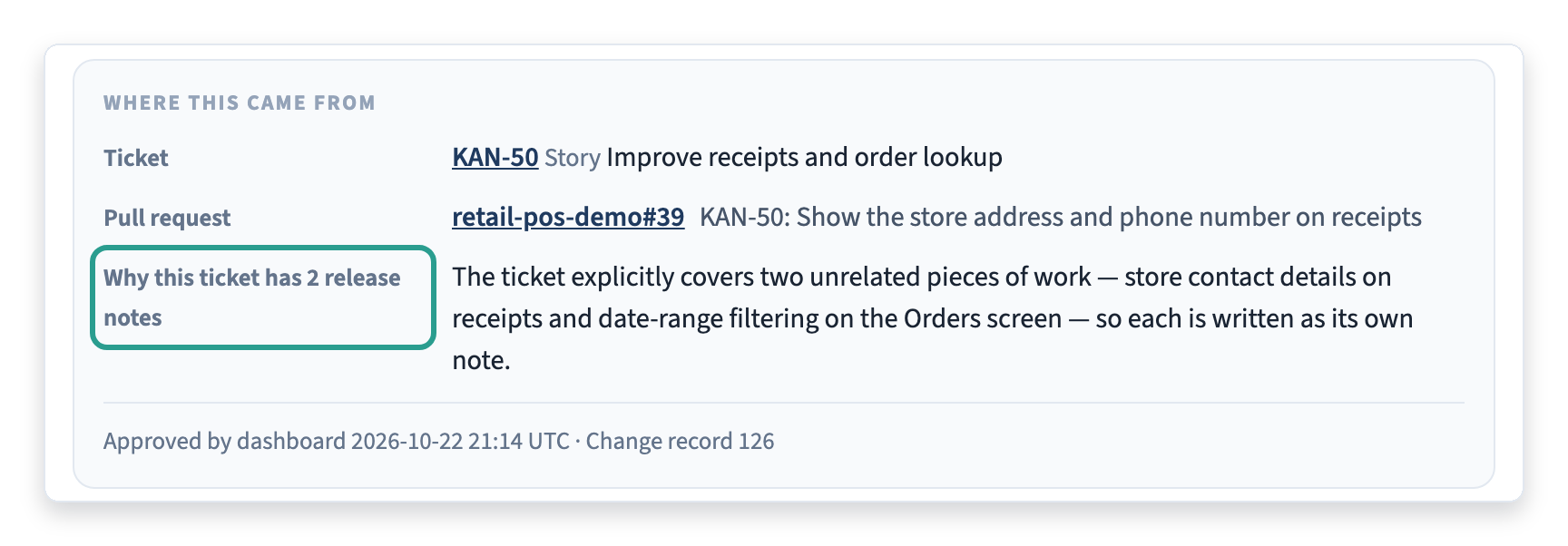
Usually one ticket produces one release note and one documentation draft. When the pull requests on a ticket deliver unrelated pieces of work, for example a receipt change and a search filter filed under the same ticket, the AI may write a separate release note and documentation draft for each piece. Each draft's card on the Review page says why in its Where this came from panel, under Why this ticket has 2 release notes or Why one release note, and a reviewer can merge or split them.
What generating never changes
Generating only writes drafts for changes that do not have one yet. It never touches a draft that has already been approved, rejected or published, so clicking Generate drafts again is always safe. To have the AI rewrite a draft that was rejected, click Regenerate on its card on the Review page.
Screenshots in documentation drafts
Documentation drafts show where screenshots belong. The AI knows which screenshots each existing help article already has and places a screenshot under each step whose screen the reader needs to see. It reuses an existing screenshot only when it shows exactly the screen and state the step describes. Otherwise, it gives the screenshot a name and describes precisely what it must show.
On the Review page, a documentation draft's card shows each screenshot:
- Existing screenshot: Appears as its image.
- Screenshot needed: A missing screenshot appears as a Screenshot needed box with its name. A count on the card shows how many screenshots are still to capture.
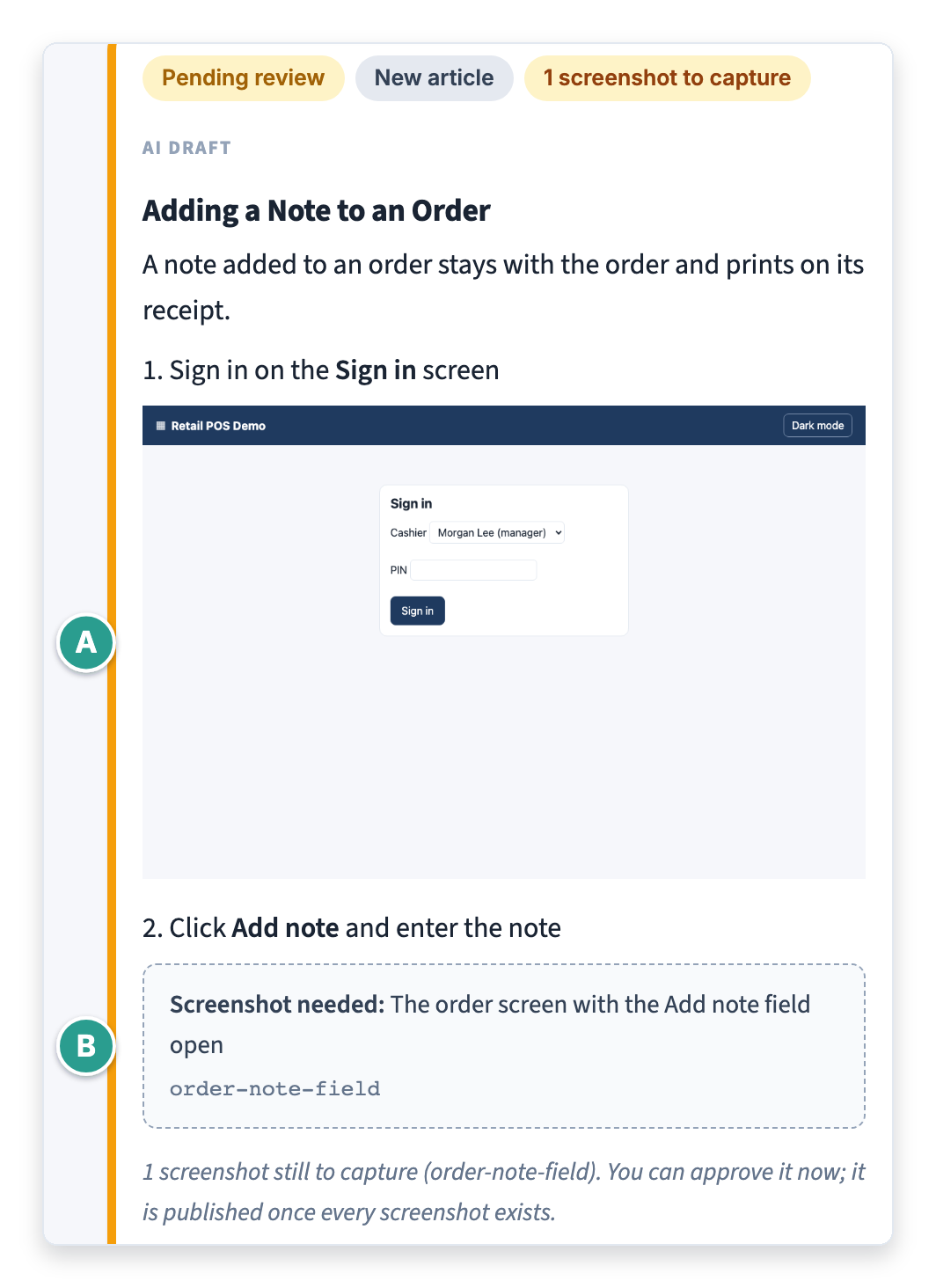
A draft with missing screenshots can be approved straight away. It is published once every screenshot exists.
Note: Publish to WordPress leaves a draft with a missing screenshot unpublished, changes nothing and says which screenshots are missing. To publish it, capture every screenshot the draft lists, then publish it again.