Every draft the platform writes is based on evidence: the pull requests that changed the code and the tickets that explain why. Before any drafts can be written, that evidence has to be brought into the platform. The Generate page offers two ways to do this, depending on how the product's repositories are tracked.
- Sync sources: Brings in the product's tickets and existing help articles, plus any pull requests picked by hand for repositories that do not publish releases. Run it at the start of each session so the platform works from up-to-date tickets.
- Ingest a release: Brings in everything merged into a repository between one release and the one before it. This group of changes is called a release cut, and it is the usual way to document a release.

To sync a product's sources:
1. Click Generate

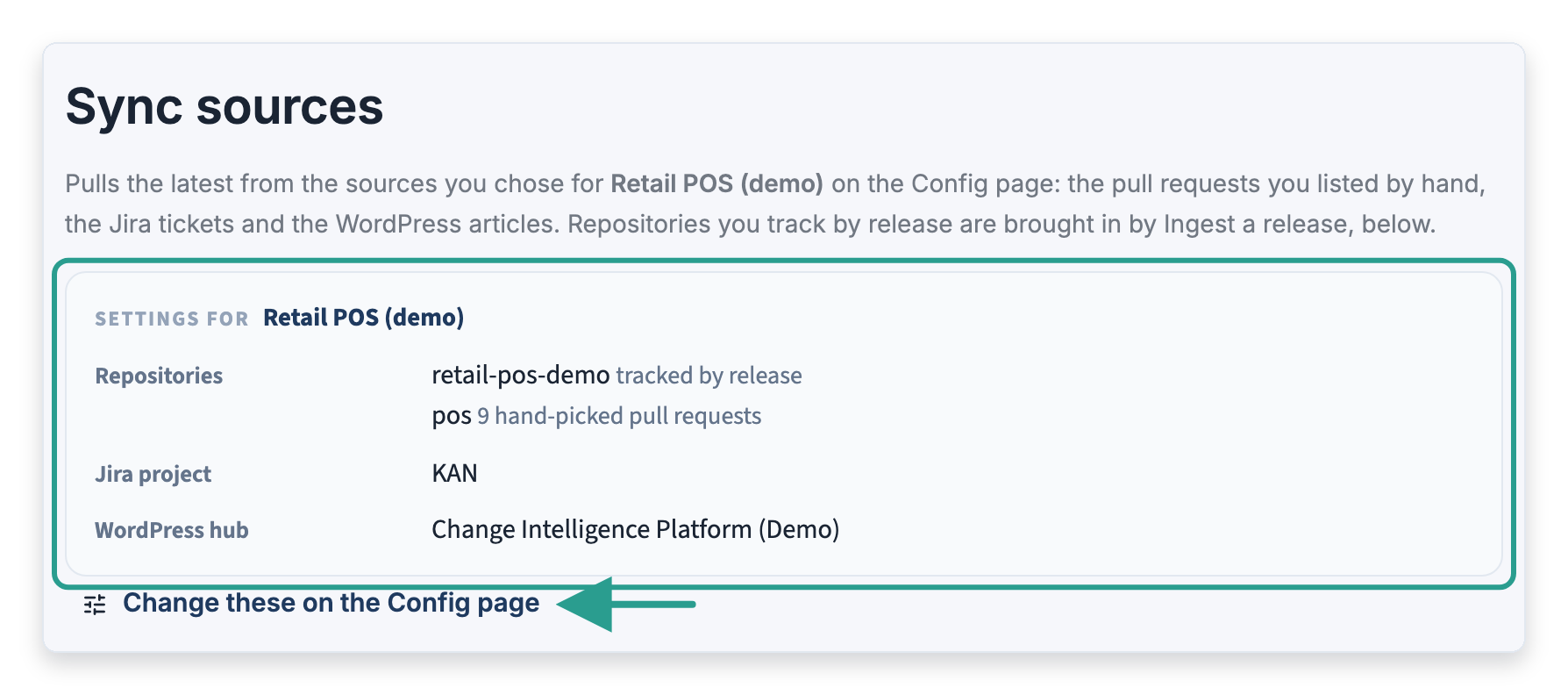
2. Under Sync sources, review the Settings for box: it lists the repositories, the ticket project and the help center the product uses. To change any of them, click Change these on the Config page
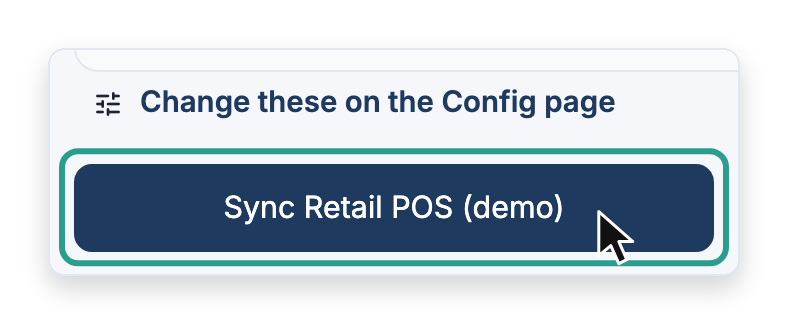
3. Click Sync followed by the product's name. The result appears under the button when it finishes
During a sync the platform also matches each pull request to its ticket. It looks for the ticket's key, such as KAN-12, in the pull request's title first, then in its branch name, its description and its commit messages. A pull request that names no ticket is still brought in, but no draft is written for it.
To ingest a release:
1. Under Ingest a release, click Load releases from GitHub. The platform reads each repository's list of releases

2. In the list under each repository's name, such as retail-pos-demo, choose the release the cut should end at. The cut holds everything merged since the release before it. Leave a repository's list empty to keep that repository out of the cut

3. In Release cut name, enter a name for the release, usually its version number, such as v1.7.0

4. Click Ingest release. The counts of pull requests and tickets in the cut appear under the button when it finishes

A release that has been ingested before is marked in the list with how many drafts it already has. Ingesting it again refreshes its pull requests and tickets and leaves its drafts exactly as they are, including any that were approved or published.
Note: A repository with no releases cannot be part of a release cut. Its pull requests come in through Sync instead, if they were picked by hand on the Config page.
To check what a release contains:
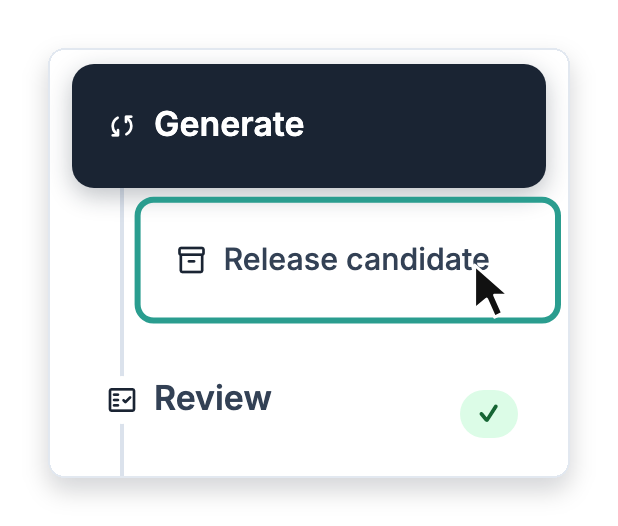
1. Click Release candidate, under Generate in the sidebar
2. Choose the cut from the Release cut list

The numbers across the top describe the cut:
- Repositories: How many repositories the cut covers.
- Pull requests: How many pull requests were merged in the cut.
- Tickets: How many tickets those pull requests name.
- Tickets with several PRs: How many tickets have more than one pull request. Their pull requests are usually described together in one release note.
- PRs with no ticket: How many pull requests name no ticket. A high count usually means pull requests were opened without a ticket key in their titles.

Below the numbers, each repository has a table with one row per pull request. Its Release note column shows how each pull request is covered.

The column shows one of three things:
- Has the release note: A release note is written from this pull request.
- Covered by: This pull request is part of a release note that another pull request on the same ticket leads.
- None yet: Nothing has been drafted for it yet.
Click Open beside a release note to see it on the Review page.